StyleLens™ Guide: Your personalised design DNA
What is StyleLens™ (and why it matters)
Written By rlowell
Last updated 7 months ago
One of the hardest parts of designing a home is knowing what actually works together.
Most people have saved images, ideas, or inspiration, but when it comes time to put everything into one space, it falls apart.
That’s the problem StyleLens™ is solving.
StyleLens takes a handful of images you like and turns them into something much more useful:
👉 a clear direction you can actually design from
It looks at your images and pulls out:
the shapes and forms
the type of furniture
the materials and finishes
the overall mood
the color palette
And then turns all of that into a structured style you can reuse.
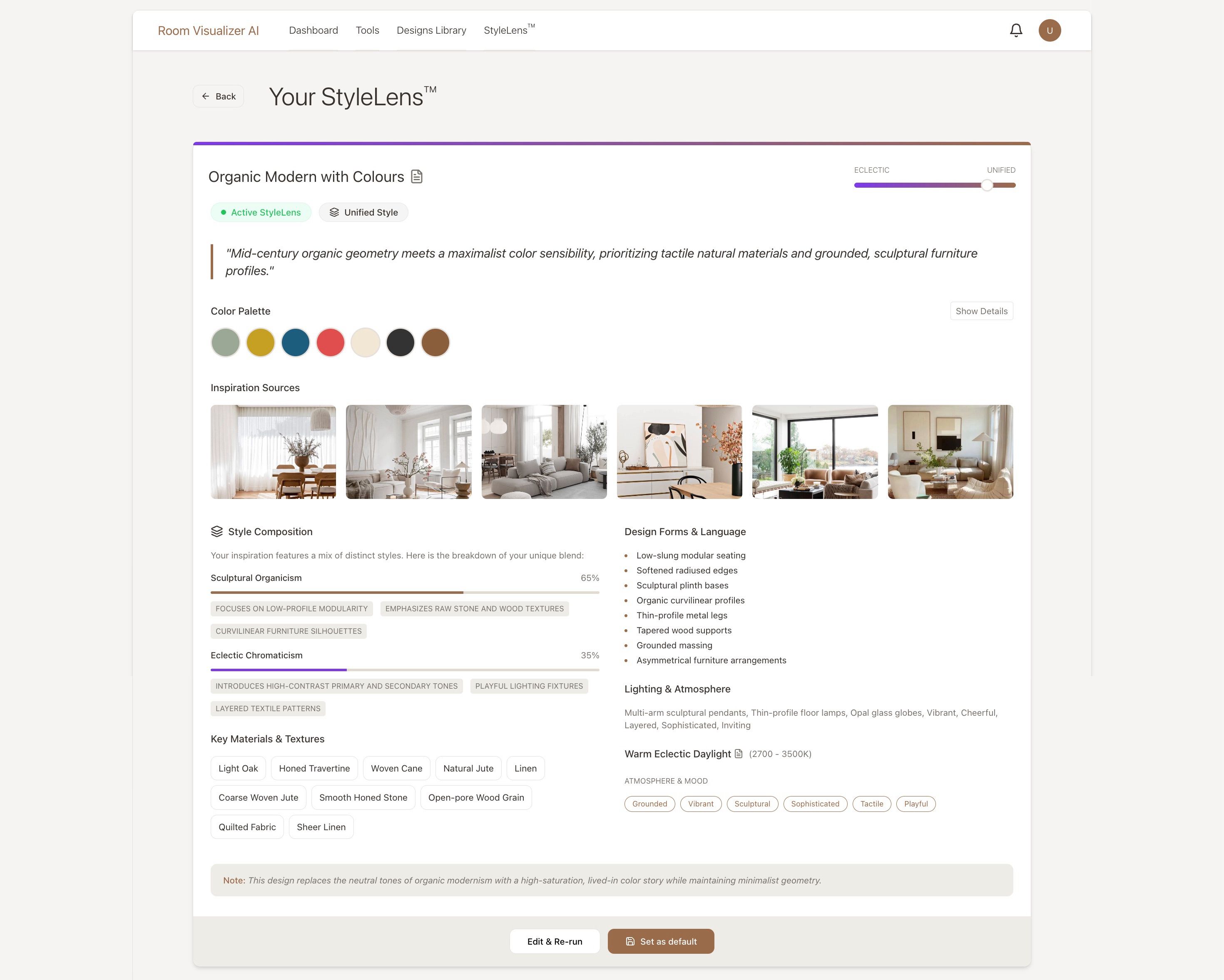
So instead of guessing every time you design a room, you’re working from a direction that’s already defined.
Creating Your First StyleLens
Go to the StyleLens tab in your dashboard. If it’s empty, that just means you haven’t created one yet. Click “Create StyleLens” to start.
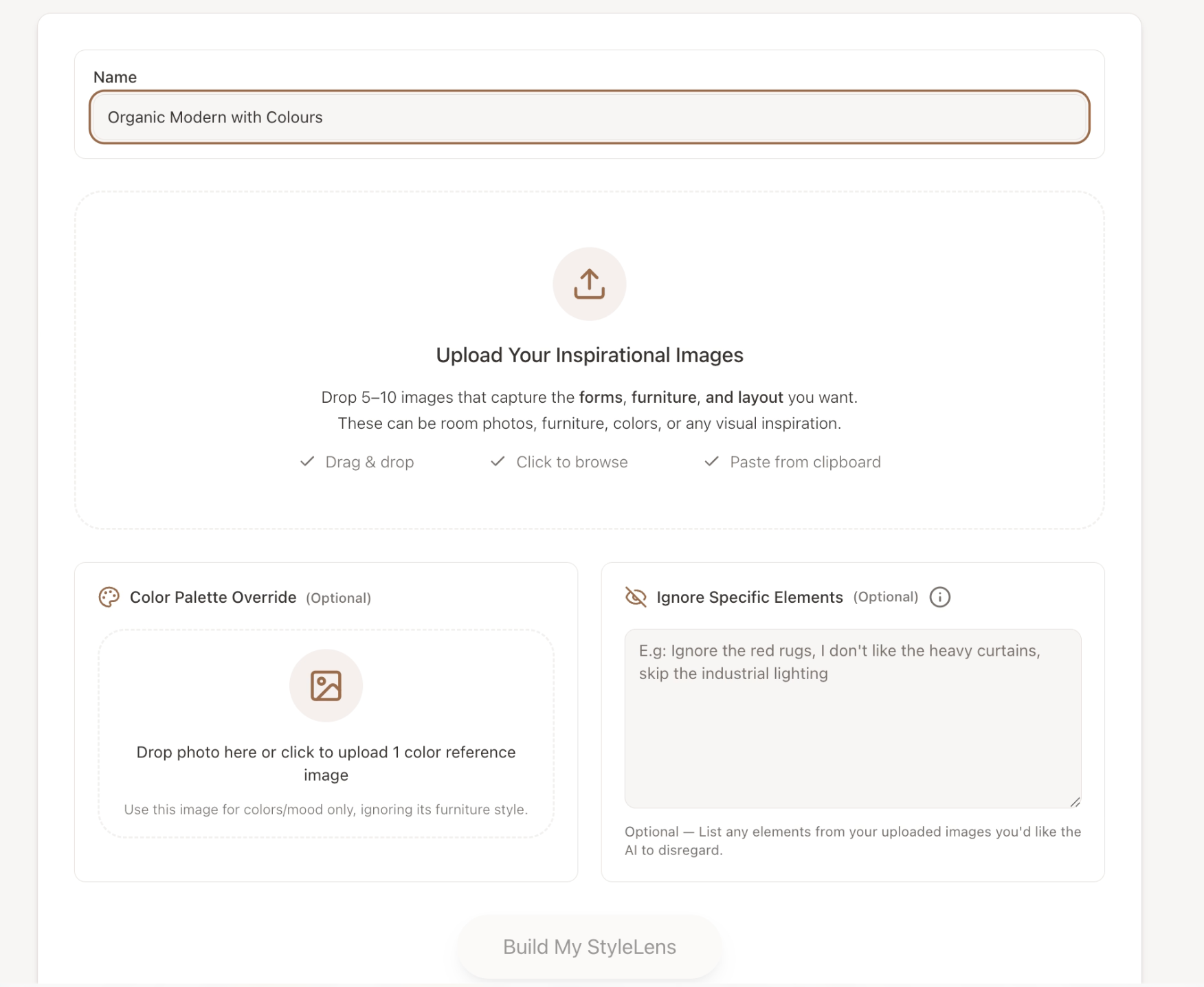
Name Your StyleLens
At the top, you’ll see a name field. This is just for you, but it becomes useful once you start creating more than one.
You might want:
one for your living room
one for your bedroom
one for a different home
or even different directions you’re exploring
Examples:
“Warm Minimal Living Room”
“Japandi Bedroom”
“New House Direction”
Keep it simple and descriptive so you know what you’re looking at later.
Add Your Inspiration Images (5–10)
This is the most important step.
You’ll need:
👉 at least 5 images
👉 up to 10 images
These images are what define your style.
Colour Palette Override (Optional, but powerful)
Normally, StyleLens picks up colour from your inspiration images.
But sometimes you like the style and mood of a space… just not the colours.
This is where the override comes in.
You can upload an image here to guide the colour direction instead.
Example
You might upload calm, neutral Japandi spaces as your inspiration, but want the palette to be more colourful.
You can add an image with the colour palette you want.
👉 The system will:
keep the style from your main images
take the colour direction from your override
It’s a simple way to shift the mood without changing everything else.
Ignore Specific Elements
You don’t need perfect inspiration images. If there’s something you don’t like, just tell it.
Examples
“Ignore boucle furniture”
“No gold finishes”
“Avoid dark wood”
This helps clean up your direction without overthinking your image selection.
Once everything is ready, click “Build My StyleLens.”
It takes about 30 seconds.
What You’ll See After
You’ll land on your StyleLens page, which is basically your style broken down in a way you can actually use.
You’ll get:
a clear overview of the style
your colour palette (easy to copy)
your inspiration images in one place
details on forms, materials, and overall composition
This becomes your reference point whenever you design.
Saving & Using Multiple StyleLens
Once saved, your StyleLens shows up in your dashboard. You can create as many as you want, this is especially useful if:
different rooms have different feels
you’re working on multiple homes
or you’re comparing directions
Using StyleLens in Your Designs
This is where it really starts to click.
When you go into Furnishing & Decorating, select your StyleLens in the Style Guidance.
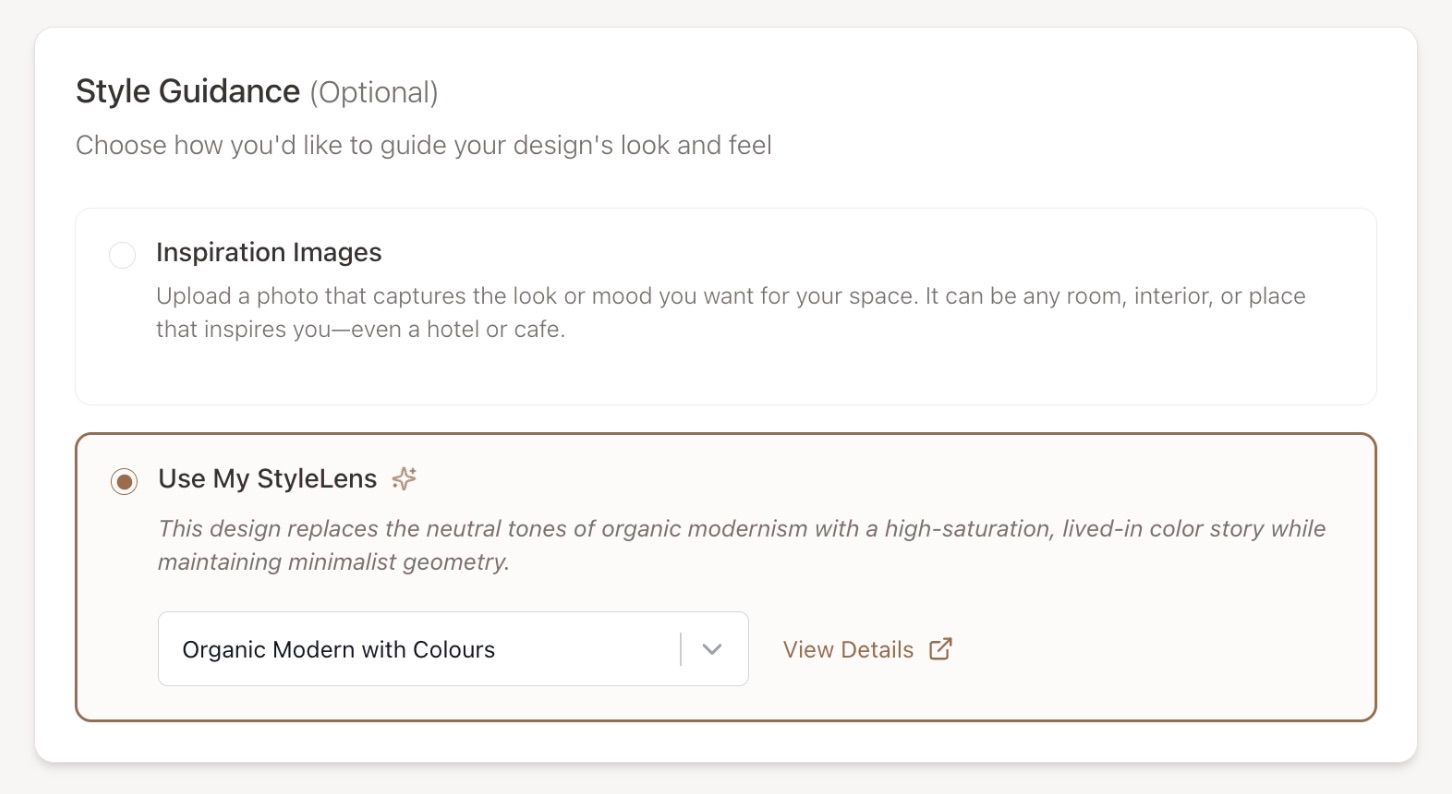
Now the AI is following a direction you’ve already defined.
Important Tip (Don’t Skip This)
If you upload a completely empty room, the AI often turns it into a living room. That’s just because it’s the most common setup.
How to avoid that
Add 1–2 reference items:
bedroom → add a bed
dining → add a table
office → add a desk
This helps the system understand what the room is supposed to be. If your photo already has furniture (like a bed in a bedroom), you don’t need to do anything.
Most people don’t have a style problem. They have a clarity problem.
StyleLens gives you that clarity, and once you have it, everything else becomes easier.
Was this helpful?
Still need help? Ask the team