Room Visualizer™ Full Guide: Tools, Settings & Tips
Every tool, setting and tip in Room Visualizer™ AI. New here? Start with the 5-step quick start instead.
Written By rlowell
Last updated 4 days ago
New here? Start with the 5-step quick start. It has the video and everything you need for your first design.
This page is the full guide: every tool, setting and tip, for when you want more detail.
Quick look: refining your design
Once your first design appears, use the chat to change it. Describe the change you want in the chat, or tap the item you're talking about first and then describe it.
Every message creates a new version and nothing gets overwritten, so if a change goes off track you can go back to an earlier version and carry on from there. Refinements don't use credits, so you can make as many as you like (you just need at least 1 credit left on your account).
If part of the room's structure doesn't look correct, use the Architecture tab.
Save your result
When you see a version that feels right, save it.
→ Log in and create your first design
1. Your Dashboard
When you log in, you’ll land on your Dashboard.
The first time you log in, this is a simple welcome screen. Type a name for the room you want to design, click Get Started, and you'll be taken straight to the tools. That's the whole setup.
Once you've created your first room, the Dashboard becomes your project view. This is simply where all your rooms and designs live.
Think of this like a folder. Each room you add appears here. Every result and refinement created inside that room is saved automatically.
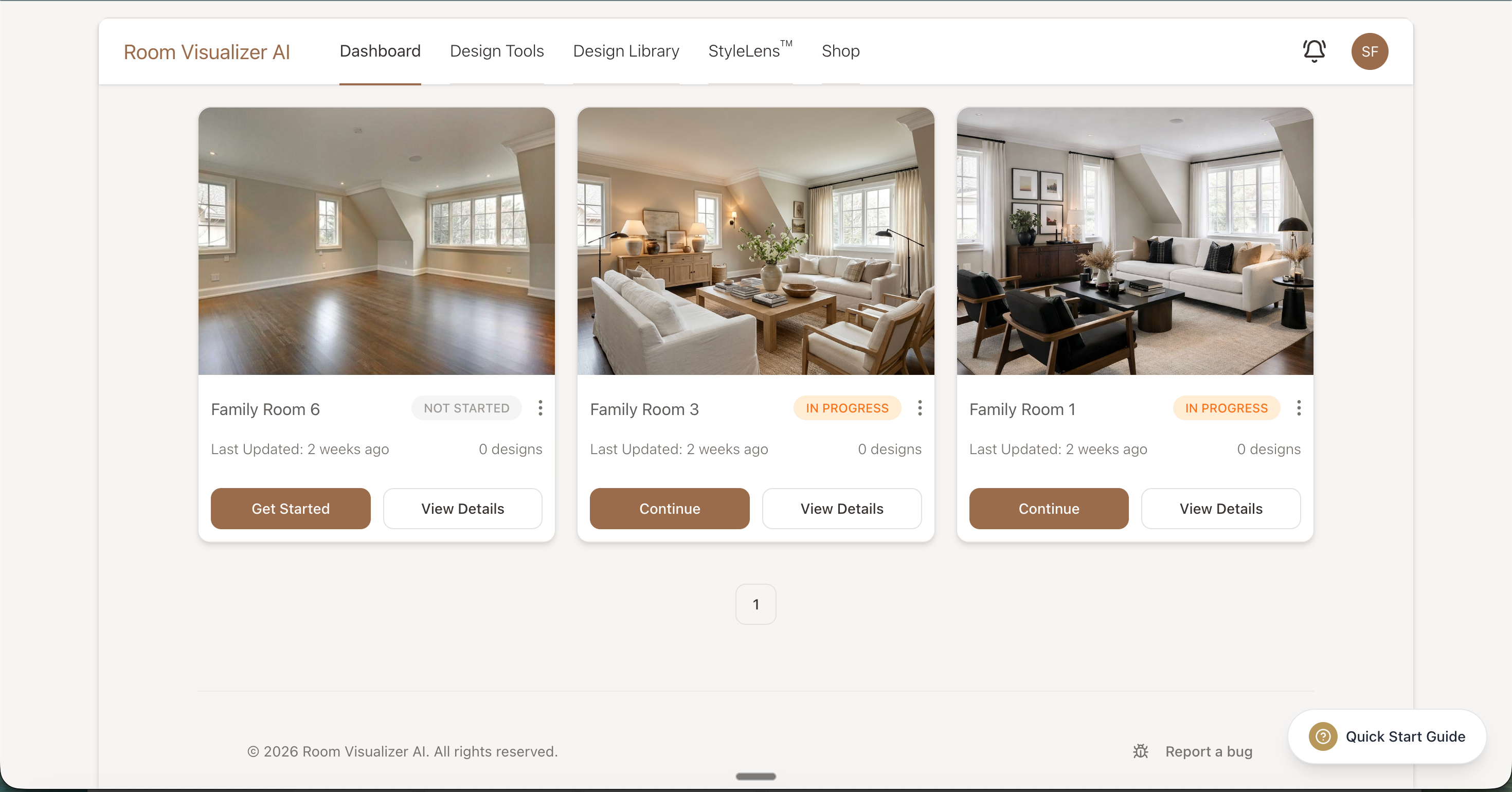
From the Dashboard you can:
Add a new room
Open an existing room
Delete a room
Revisit previous designs
Think of it as your design archive. You can move between rooms anytime so nothing gets lost.
2. Choosing a Tool
There are two tools inside Room Visualizer™: Furnishing & Decorating, and Kitchen & Bathroom. They’re built for slightly different goals.
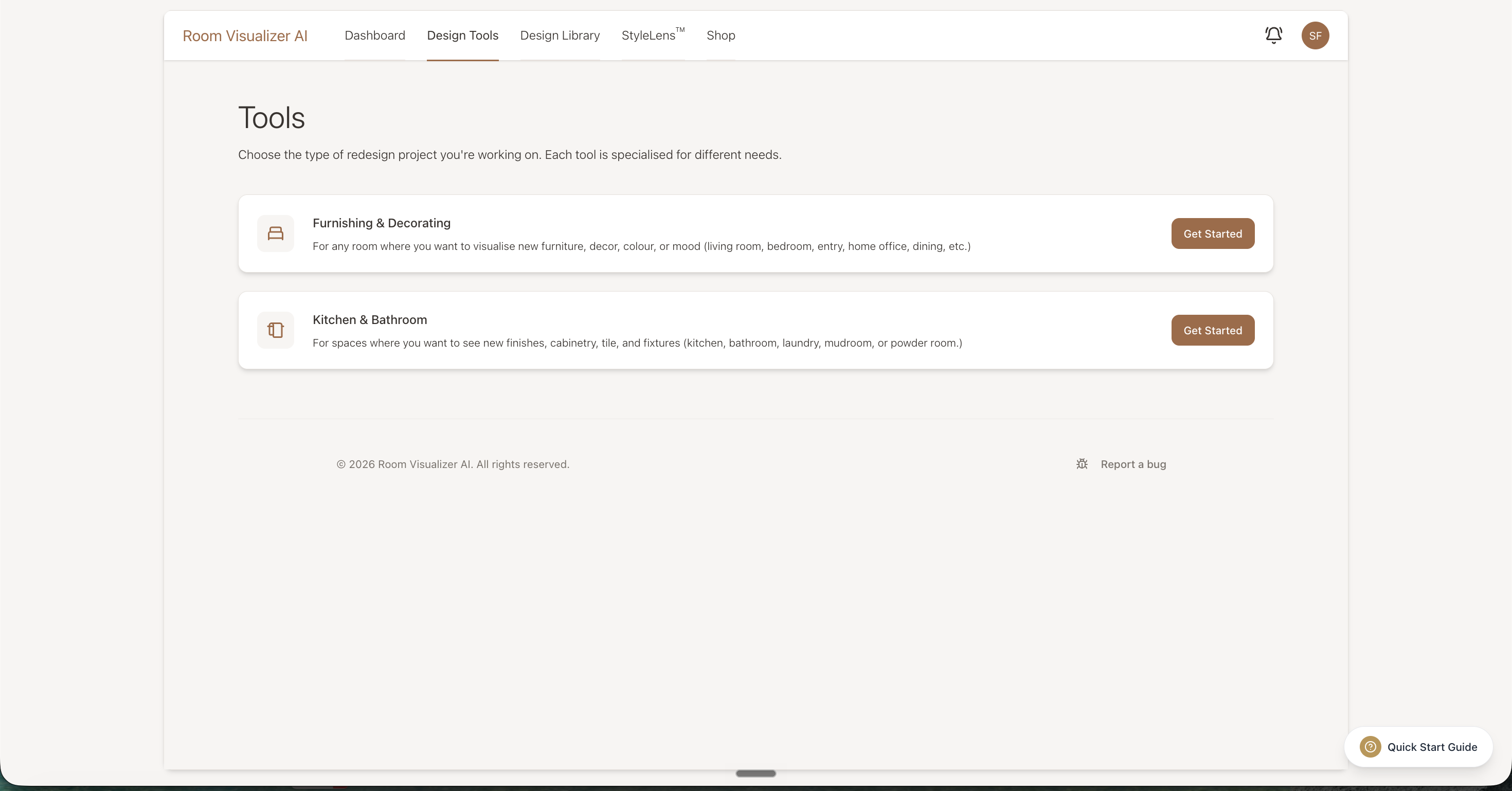
Use Furnishing & Decorating for living rooms, bedrooms, dining rooms, offices, entryways, or any general space you want to furnish or decorate.
Use Kitchen & Bathroom when you want to test finishes and materials in a kitchen, bathroom, powder room, or another space with built-in joinery.
🛋 Furnishing & Decorating
Use this for living rooms, bedrooms, dining rooms, offices, entryway, or any general space.
This tool is best when you want to:
Furnish and decorate a room
Test new furniture
See how decor pieces might look
Explore a full room makeover
Do a lighter styling refresh
The form is split into three parts. The main section holds the few things that shape your result, and everything else sits in Specific Requests and Advanced Options underneath. Both are collapsed by default.
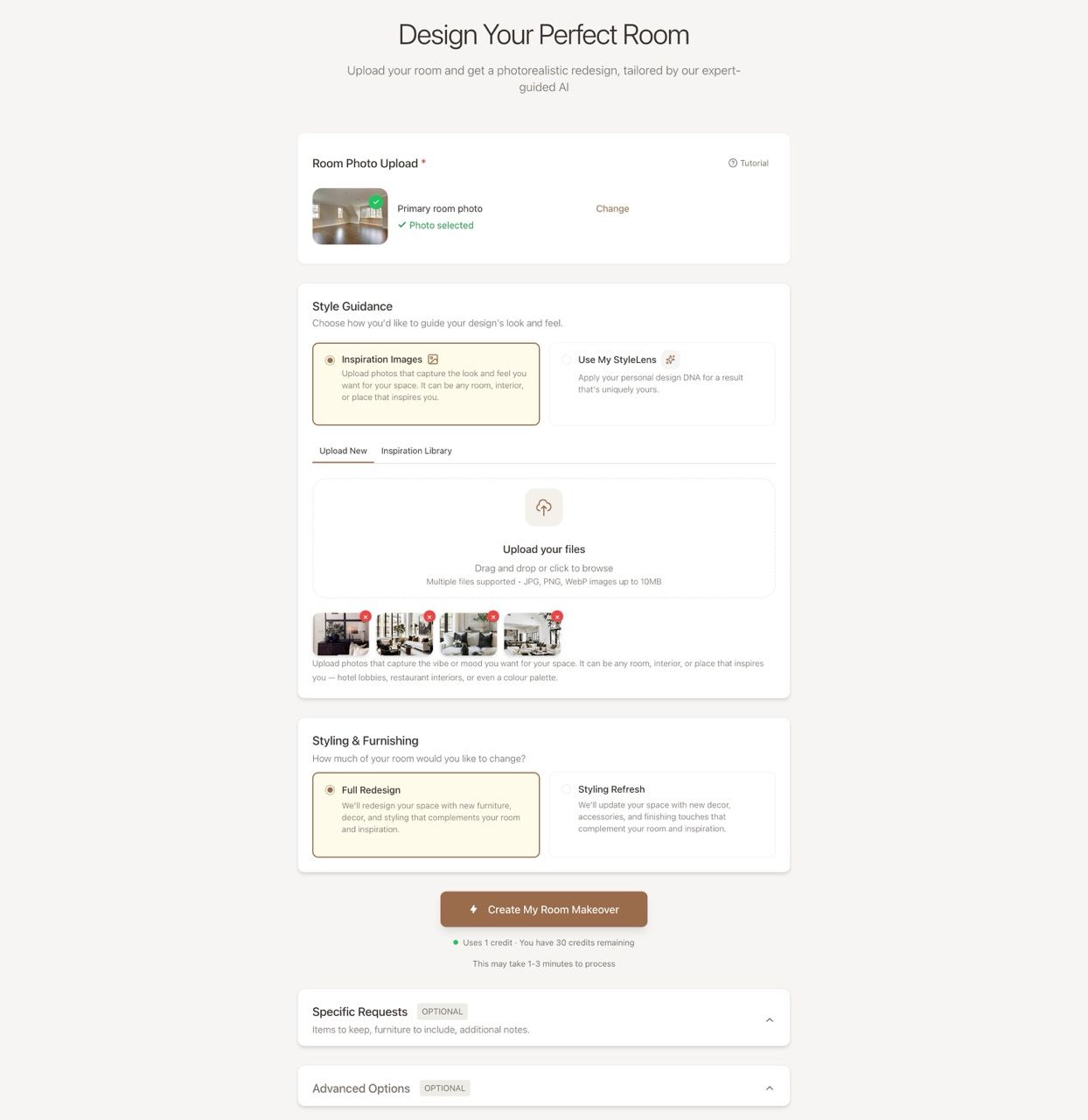
What you'll see straight away:
Upload Your Room Photo & Style Guidance (required)
This is the single biggest factor in how good your first result is, so it's a required step. You have two options:
Upload inspiration photos. Inspiration images guide the overall style.
If you upload a mix of different moods and styles, the results will often reflect that blend. This is great for exploration.
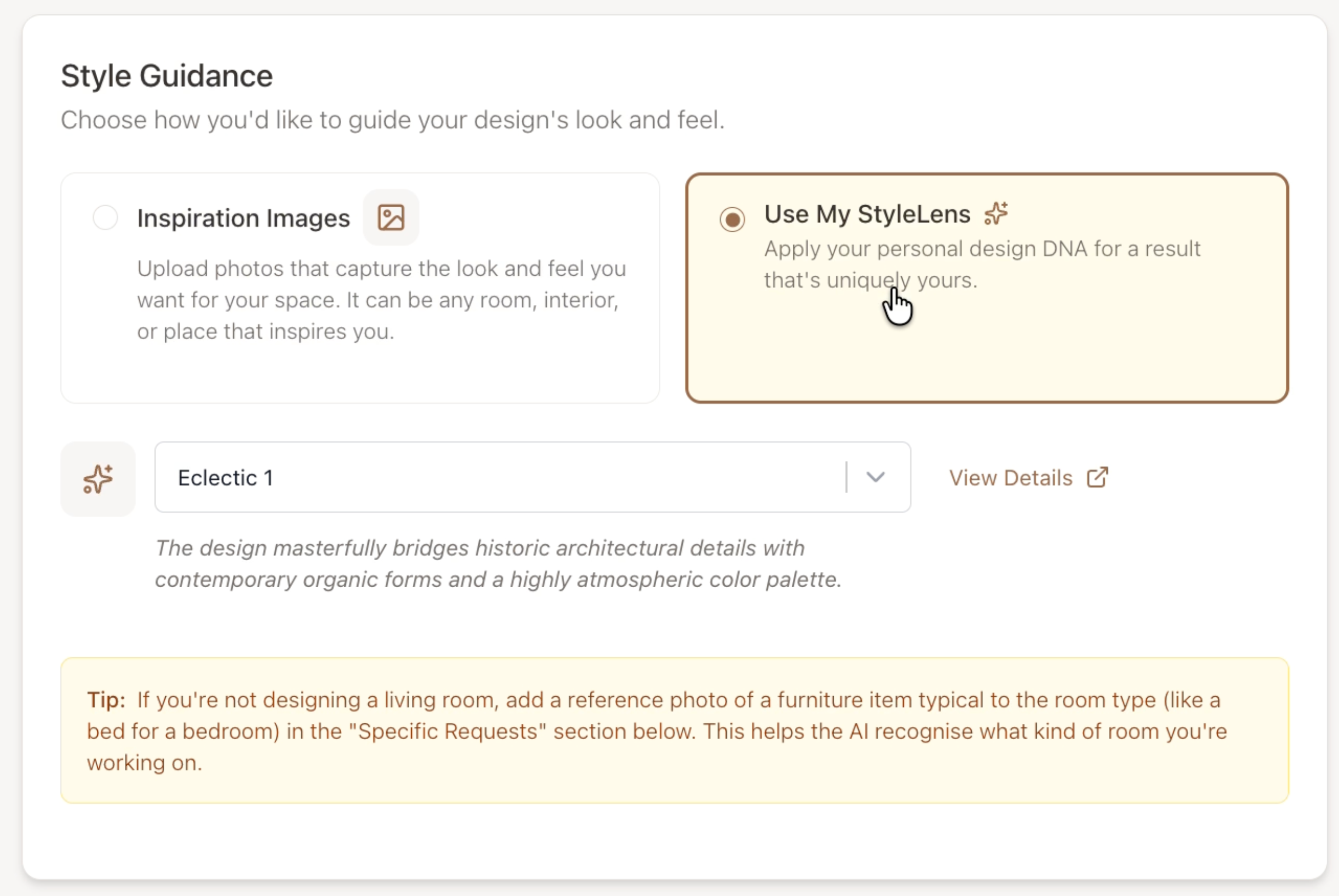
If you're aiming for a more consistent look, selecting inspiration photos that feel related will usually produce a more predictable outcome.Use a StyleLens™ profile. If you've already built one, select it here and the AI will design to your saved taste.
For first-time users, we recommend generating a design with inspiration images first—StyleLens™ is locked by default until you’ve created an initial result. This is intentional: it keeps the UI simple and helps you get started quickly without distractions.
More on StyleLens in section 3.
Choose the level of change
Full Redesign – more open to reimagining the space
Styling Refresh – more focus on styling and decor
Inside Specific Requests:
Tell the AI what to keep
If you want to keep certain items from your current photo, simply list them.
For example:
Keep the sofa
Keep the media unit
Keep the flooring
If you don’t specify anything, the tool has more freedom to redesign.
Upload furniture you're considering
You can upload items you’re considering like:
A rug
A sofa
A coffee table
A pendant light
Artwork
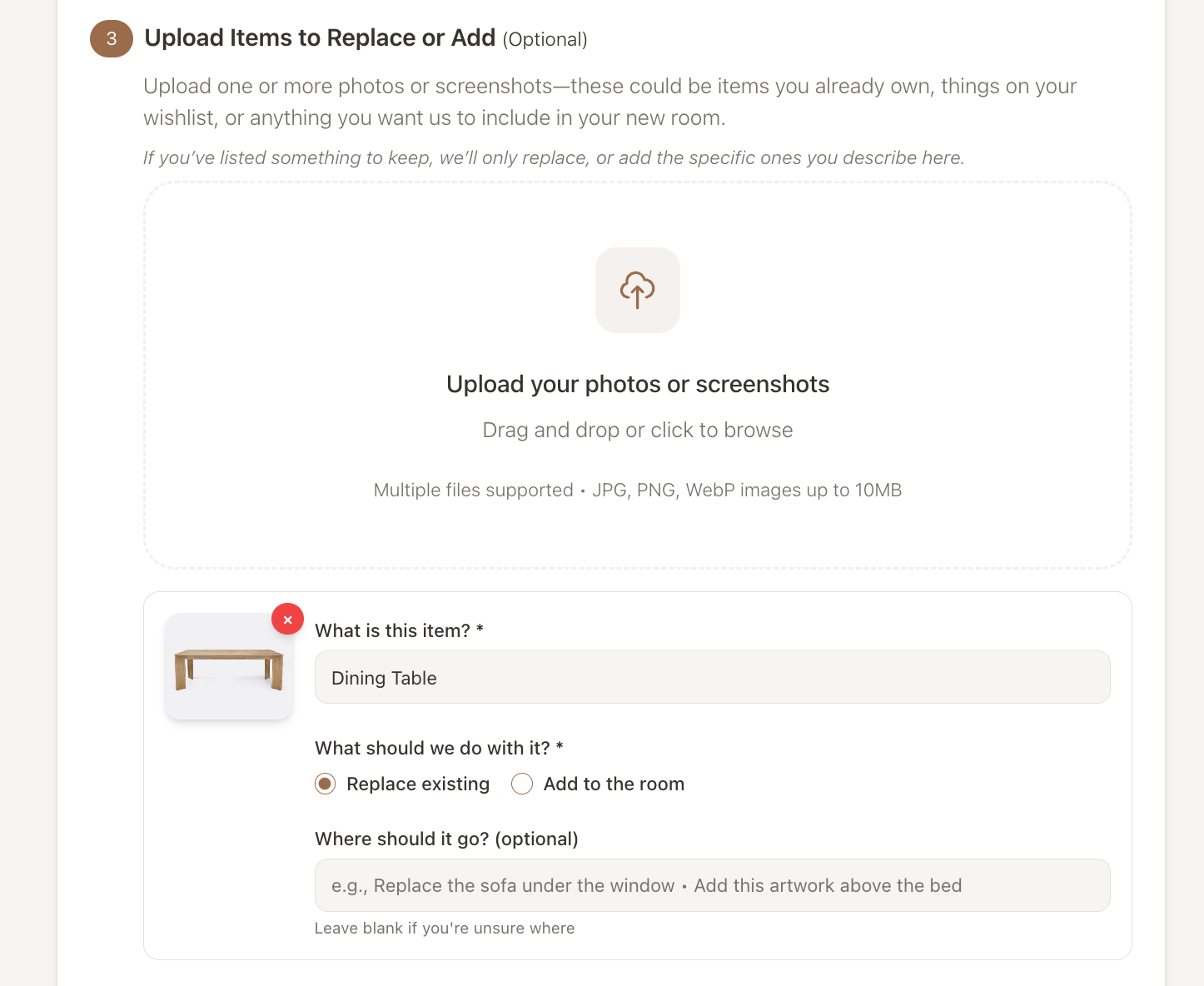
Using Text Instructions
You can also include written instructions.
A few helpful tips:
If you have a particular design style or period in mind, uploading corresponding inspiration images or item photos will usually produce stronger results than simply naming the style in text.
If your first result isn’t quite what you expected, try rewording your instructions slightly and refining again.
Inside Advanced Options:
The AI model
There are two AI models (Standard & Experimental). The app picks one for you automatically based on what you fill in, so you don't need to touch this. If you'd like to compare, you can switch to the other model here. More on the two models.
You'll also find architectural change settings here.
🍽 Kitchen & Bathroom
Use this tool when you want to test finishes and materials in a kitchen, bathroom, powder room, or joinery.
This is especially helpful if you’re renovating or updating surfaces.
This tool is laid out the same way. Your room photo and inspiration photos sit in the main section, and your finishes, fixtures, and notes go into Specific Requests.
You can upload:
Tiles
Countertops
Flooring
Cabinet colours
Hardware
Fixtures
Tapware
Mirror
Lighting
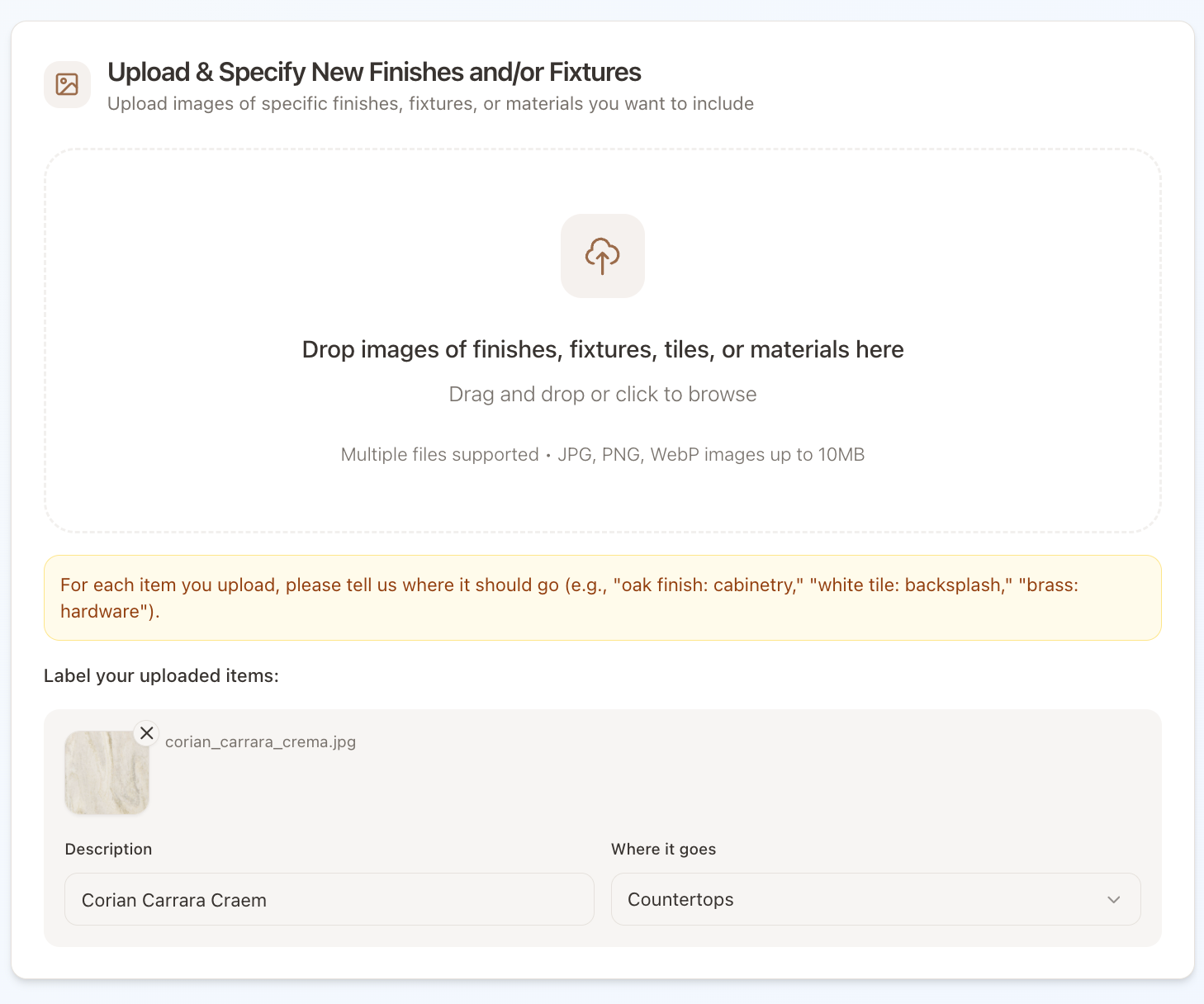
Inspiration is required here
Inspiration photos are a required step for this tool. If you're still exploring direction, upload inspiration photos of kitchens, bathrooms, powder rooms, etc.
This allows you to see how different finish combinations might look in your own space, even before you’ve chosen specific materials.
→ Log in and create your first design
The Room Selector (Top Bar)
When you enter either tool, Furnishing & Decorating or Kitchen & Bathroom, you’ll notice a dropdown at the top that says something like:
Working on: Living Room
This dropdown reflects the same rooms you see on your Dashboard.
In other words:
Each room in the dropdown = the same room from your Dashboard.
If you switch rooms here, the result will be saved to the room you selected.
If you click New Room, you’re creating a new room — just like from the Dashboard.
All designs you create inside a tool are saved to whichever room is selected at the top.
So if you ever wonder,
“Where did my design go?”
Just check which room is selected in the top bar.
This keeps everything organised and separated by room.
If you're new, this dropdown stays fixed on the room you just named until your first design is finished. It unlocks after that.
Quick Tip: Where to Find Inspiration Images (If You Need Them)
If you’d like inspiration images but aren’t sure where to start, here are a few easy options:
Pinterest
Instagram
Publications and designer websites
These often show full, cohesive spaces which can be helpful if you want a clear direction.
Here’s a full list of sources that I personally like to explore for inspiration.
You don’t need a large collection. A small set of consistent images is usually enough to guide your first generation.
3. StyleLens™ — Your Personalised Design DNA
Every professional designer starts a project by figuring out what their client is actually drawn to. That process of understanding your own taste is a big part of getting design right.
StyleLens™ lets you do that in a few clicks.
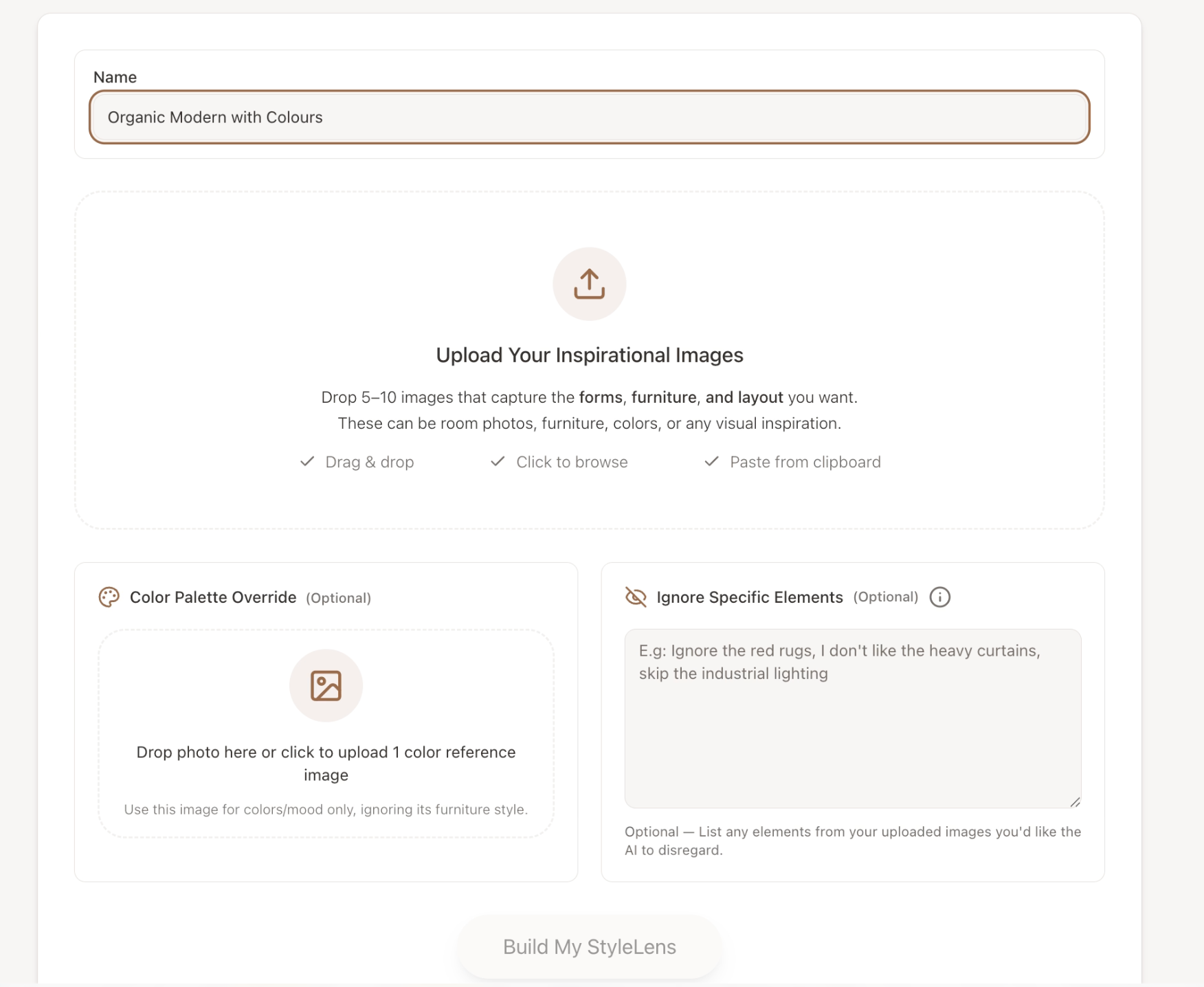
Upload 5–10 inspiration images — rooms, spaces, anything you're drawn to — and the AI builds a detailed style profile for you. It breaks down your colours, materials, textures, and overall aesthetic so you can see the patterns in what you like.
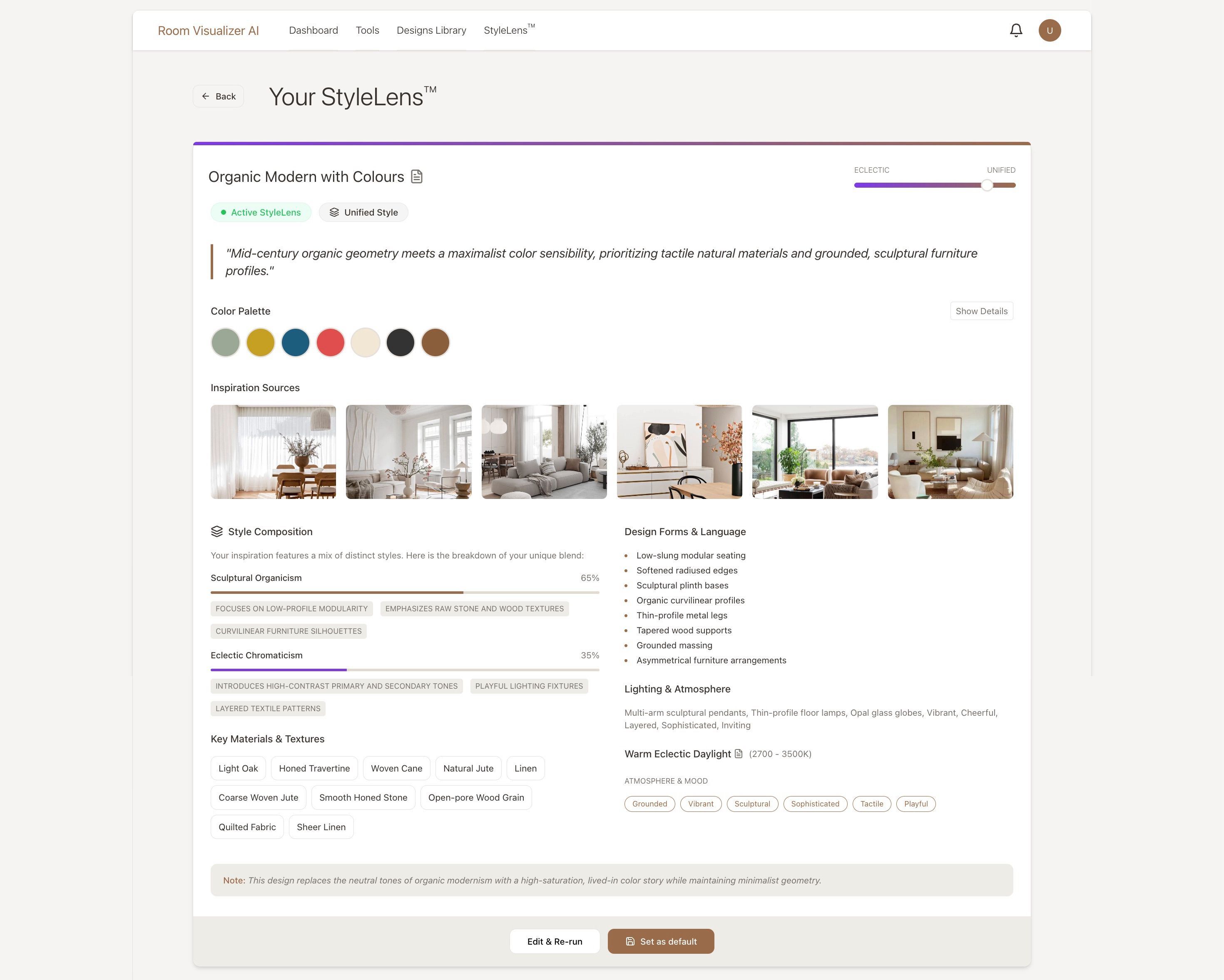
Once saved, you can apply your profile to any room you redesign. The AI uses it to guide the direction, so results feel more aligned with your taste.
A few things worth knowing:
You can create multiple profiles. This is useful if you want a different feel for different rooms or properties — a calm, warm bedroom versus a brighter kitchen, for example.
There's a colour palette override. If your inspiration images capture the mood and furniture style you want, but you'd prefer different colours, upload a single image with the palette you'd like. StyleLens will pull colours from that image instead of from your inspiration set.
You can also specify things you don't want. If there's a material, pattern, or colour you want excluded, you can note that and it won't appear in your profile.
Quick tip for empty rooms: If you upload a completely empty room, the AI often defaults to treating it as a living room. To avoid this, add 1–2 reference items that signal the room type — for a bedroom, include a bed; for a dining room, include a table. This helps the system understand the space. If your photo already has furniture in it (like a bed in a bedroom), you don't need to worry about this.
→ Log in and create your first StyleLens™
4. A Quick Note on Results
Room Visualizer AI is built to help you visualise combinations — colour, texture, finishes, furniture — in your actual space.
It’s designed for exploration and clarity. It’s not a drafting or technical planning software, and it’s not meant for exact measurements. Use it to understand how things feel together before making decisions.
Once your design is generated, you'll see your redesigned room, along with three tabs on the right (or bottom on mobile): Chat, Architecture, and Analysis.
Chat is where you refine your design. If something needs adjusting, or you'd like to try a different rug, you don't need to start over. Describe the change and send it, or tap the item first to point at exactly what you mean. Every message creates a new version, and they all sit in a row underneath your design so you can jump between them.
If a refinement doesn't go the way you expected, click back to the version you liked and carry on from there. Nothing is lost. Here's the full guide to refining.
Architecture is for when the room's structure looks wrong. If the first result changes the room's architecture in a way that doesn't match your real space, open the Architecture tab and click Match my room. This is designed to bring the architecture back to your original photo while keeping the design direction as close as possible. Sometimes it takes 2–3 tries to get a clean result, so if the first attempt doesn't fully fix it, just run it again. Here's the full guide.
Analysis is the written breakdown of your room, with advice on what's working and what you might want to reconsider. It's worth reading before you start refining, since it often points you at a better first change than you'd have picked yourself.
Design often works best in steps. Adjust gradually, and compare versions.
Was this helpful?
Still need help? Ask the team