Project Dashboard "before" room photos can be upside down
This has also happened with original room photos when generating AI designs. The first time I saw it there was 2 September 2025, and I mentioned it a few times in feedback on the actual design instances.
I’ve now seen the same upside-down image thing with the “before” photo I uploaded when setting up a new Project Dashboard room.
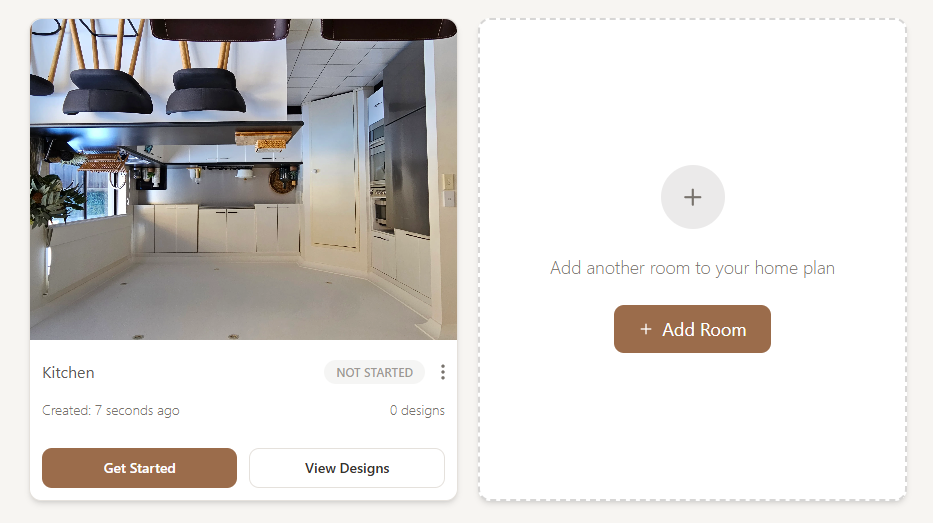
I presume the system is using something in the photo metadata rather than respecting the orientation in which the image was uploaded, but it’s rather annoying. Camera phones, for example, don’t really have a “right way up” when taking landscape images.
I’ve included a screenshot for reference. Can you please have the system retain the orientation in which images are uploaded, and not rotate them based on image metadata?
Log in to comment and vote
Comments2
Sue Fisher
Oct 13, 2025
Additional additional information… After a restart, the room photo that had been returned to the correct orientation by reloading the same photo (as described in the previous “additional information” comment) was again showing upside down.
Sue Fisher
Oct 11, 2025
Additional Information
If I upload the same image file via “Edit Room Details” from the “…” menu, the room image is updated and is no longer upside down.
Here’s the workflow using a different room.
Step 1 - Add a new room, uploading a photo by dragging it from File Explorer. Note that the photo orientation is correct in the small thumbnail.
Step 2 - After saving the room, look at the Project Dashboard: the new room’s photo is upside down.
Step 3 - From the Project Dashboard, open the “…” menu for the room and choose “Edit Room Details”. The room’s photo is upside down here too.
Step 4 - Upload exactly the same image file again by dragging it from File Explorer into the “Before Photos” panel.
Step 5 - Choose “Back” to return to the Project Dashboard. The room’s photo there is now shown correctly.